Best Free Video Editor for Chromebook: No Install, No Watermark
November 4, 2026 · Eben - AskEditor · 9 min read
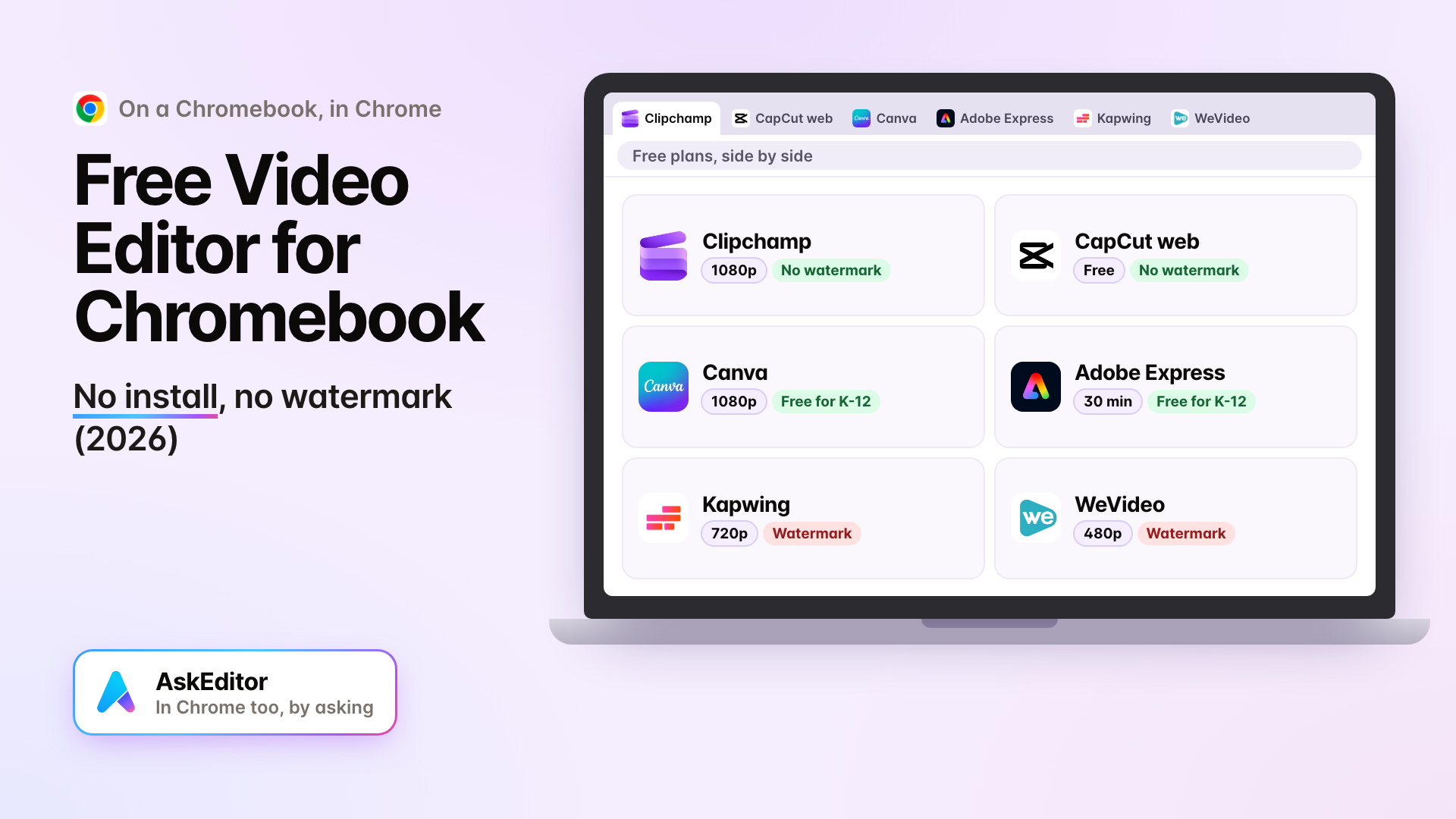
The free video editor for Chromebook that runs in the browser: no install, no watermark, picks for YouTube, school and business, and CapCut's trouble.
Table of contents
The best video editor for Chromebook is one that runs in the browser: nothing to install, no Linux, no Android app that may not load. On the free plans as of 1 November 2026, Clipchamp gives the most: 1080p exports with no watermark, green screen and voiceover.
Canva and Adobe Express are the ones a school can use free. Kapwing and WeVideo add a watermark on Free. We make AskEditor, so it sits in the tables below as one row, marked as ours, on the same columns as everyone else.
We read 1,262 comments under the ten most watched videos on Chromebook editing. Of the 918 that asked for something, 379 said the same thing: the editor wouldn't install, open, take the file, or export. So this post sticks to what runs.
- For a YouTube or gaming channel the free editors, and one pick
- For a class on school Chromebooks age, sign in, privacy
- For a business video phone clip to captions, step by step
Best free video editor for Chromebook
On the free plans, Clipchamp exports 1080p with no watermark and CapCut's web editor exports with no watermark; Kapwing stops at 720p with a watermark and WeVideo at 480p. Each line below is from the company's own pricing or help page, checked on 1 November 2026 and again on 3 November.
| Editor | Free export | Green screen, voiceover | Free limits |
|---|---|---|---|
| Clipchamp | 1080p, no watermark | Both free | None stated; Microsoft account needed |
| CapCut web | No watermark | Both free | No free cloud space for new users (November 2026) |
| Canva | 1080p; premium elements marked | Voice free; background removal Pro | 30 minutes, 5 GB |
| Adobe Express | Not stated; no watermark | Both Premium | 30 minutes, 5 GB |
| Kapwing | 720p, watermark | Both free | 4 minutes an export, 30 a month |
| WeVideo | 480p, watermark | Voice free | 5 minutes a month |
| AskEditor (ours) | 1080p, no watermark | Neither on Free | 2 GB, 500 MB a file |
The pick for a YouTube or gaming channel is Clipchamp. It and CapCut web both give green screen, a voice recorder and no watermark free, and Clipchamp states 1080p; Clipchamp states no length cap and keeps your files, where CapCut gives new users no free cloud space.
Three catches:
- A Microsoft account. New users must make one. Microsoft's terms ask for the age of majority or a parent who agrees, so under 18, ask a parent to set it up.
- Memory. Microsoft recommends 8 GB (16 GB better). No editor here promises to run well on 4 GB.
- On a 4 GB Chromebook, use Clipchamp anyway, with every other tab closed and one export at a time. No vendor gives a safe length for 4 GB, so start with a short video and go longer if it keeps up. If CapCut's web editor opens for you, it's the other free choice with green screen.
To record Roblox or Minecraft gameplay, ChromeOS has a screen recorder built in: press Shift + Ctrl + Show windows, then Screen record. It can take the game's sound, your microphone, or both (Google's page). Bring the recording into the editor from Files.
Where AskEditor fits: it runs in the browser and exports 1080p with no watermark on Free, and you can ask it for an edit in plain words, such as "cut the pauses and add captions". It has no green screen and no microphone recording in the editor, so for a gaming channel it isn't the pick.
For a class on school Chromebooks
For a class with students under 13, use Canva Education: Canva's terms let children use Canva only through Canva Education, which is free for K-12 schools and has a student privacy page. Adobe Express is the other free choice for schools. Most of the rest require students to be 13.
On a school Chromebook, Linux is blocked by default and Google says the Play Store may not be available, so browser editors are what's left.
| Editor | Minimum age | Free for schools | Sign in with Google |
|---|---|---|---|
| Canva | 13, except through Canva Education | Yes, K-12 | Yes |
| Adobe Express | 13 for a personal Adobe ID; younger students through the school's K-12 agreement | Yes, K-12 educators; students join by class code | Not stated on the pages we could read |
| WeVideo | 13, or younger on an education plan | Paid, from $89 a year for one teacher | Yes |
| Clipchamp | Age of majority, or a parent agrees | Only with Microsoft 365 A3 or A5 | Not for new accounts |
| CapCut | 13; under 18 with a parent | No school plan | Yes |
| Kapwing | Under 13 not allowed without a parent | Its free school program stopped taking schools in December 2022 | Yes |
| AskEditor (ours) | 13; under 18 with a parent | No school plan | Yes |
Privacy, in the companies' own words:
- Canva has a Trust for Education page covering FERPA and COPPA, and its education page says it "never uses student data to train AI models".
- Adobe has a K-12 student privacy page: student data is not used for ad profiles or sold.
- WeVideo says student accounts on an education license are FERPA and COPPA compliant.
- CapCut says on its own help page that independent use by children under 13 is not recommended.
Handing work in: in Canva, a student opens the assignment from Google Classroom and presses Submit to Google Classroom without leaving the editor. Adobe Express names Google Classroom on its education page. WeVideo has a Google Classroom add-on, but only with a paid education license. Students can also download the MP4 and attach it in Classroom.
Getting Canva Education: a teacher signs up with a school email or proof of employment, and Canva says it verifies within a few days (Canva Education).
What to ask your school's IT team: whether the editor's site gets through the filter, and whether students sign in with their school Google account. Both decide more than any feature. For Canva, the site to allow is canva.com.
Phone video to captioned video
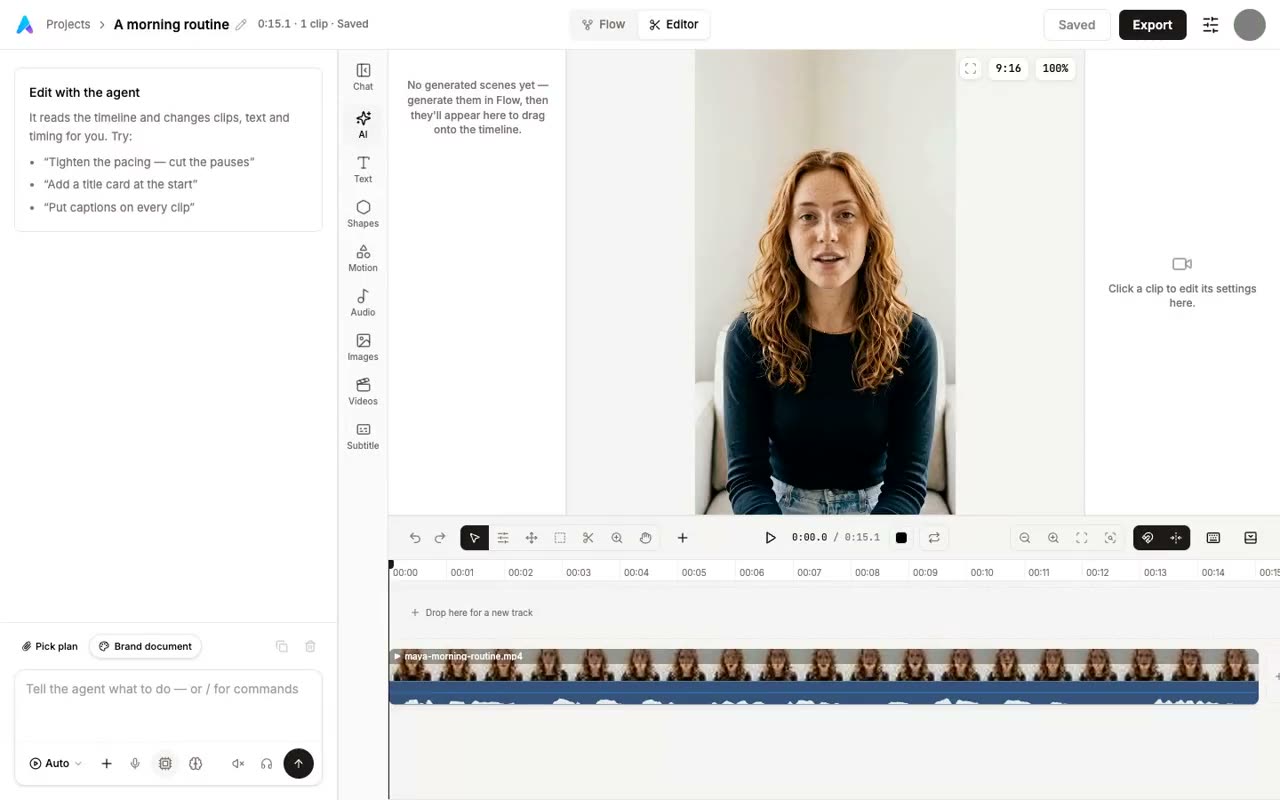
The quickest route from a phone clip to a clean, captioned video on a Chromebook is: put the clip in Google Drive, open a browser editor, let it write the captions, export. Here it is in AskEditor, which is ours. Clipchamp also writes captions free.
- Get the clip off the phone. On an iPhone or Android phone, upload it to Google Drive or Google Photos. On the Chromebook it shows up in the Files app.
- Open askeditor.com in Chrome and sign in with Google. Nothing to install.
- Bring in the clip from Files. Free holds up to 500 MB a file.
- Ask for captions in the chat: "add captions to the clip". They're written from your words automatically, free for 30 minutes of speech a month: about thirty one-minute videos.
- Pick a caption style and the shape, such as 9:16 for Instagram, then export at 1080p. No watermark on Free.
If you need more: AskEditor's Creator plan is $20 a month ($12 billed yearly) and gives 600 minutes of captions a month and 1,200 credits. Credits pay for the tools that cost us money to run each time, such as an AI voiceover. Clipchamp's paid features come with Microsoft 365 Personal at $9.99 a month.
If CapCut says "device not supported"
As of November 2026, CapCut offers three ways in on a Chromebook, and when the app won't install, its own help page says the web version may still work. CapCut's Chromebook page lists:
- open capcut.com in Chrome;
- install it from the browser as an app;
- search for CapCut on Google Play.
If none of the three works, our CapCut alternatives guide lists the free apps that replace it, with each one's catch.
On devices it no longer supports, CapCut says the app "may not appear in the app store or may fail to install". It also says a device that can't install the app might still use CapCut Online.
What CapCut doesn't say: its web editor's system requirements list macOS and Windows only, not ChromeOS. And people in the comments we read have reported "device doesn't support this" since late 2024.
So: if you want to stay with CapCut, try capcut.com in Chrome. If it won't open, Clipchamp is the pick above.
Will my Chromebook cope?
Most of these editors do the work in your browser, so memory matters; only some vendors say how much.
What each says on its own pages:
- Clipchamp: 8 GB recommended, 16 GB better.
- Kapwing: 8 GB and 30 GB of free disk.
- Canva and Adobe Express: a recent Chrome; no memory figure on the pages we could read.
- AskEditor: exports in your browser, or on our servers (three times on Free). We have run it on a Chromebook; we haven't measured one, so we give no figure.
Android apps and Linux
Android apps and Linux editors can do more, but they are the routes that break most often, and a school may turn them off; skip them unless the browser editors fall short.
- Android apps such as KineMaster, PowerDirector and LumaFusion install from Google Play, which Chromebooks launched since 2019 support. KineMaster and PowerDirector are free with ads, and KineMaster's free exports carry a watermark; LumaFusion is a one-time $29.99 and needs 3 GB of memory.
- Linux editors such as Kdenlive and Shotcut need Linux turned on in Settings, which Google calls a feature for developers. Its own page says setup takes 10 minutes or more and that, as of November 2026, video decoding isn't hardware accelerated, which is what editing leans on. Kdenlive's own guide asks for 8 GB for HD.
- Linux was the most viewed answer on YouTube, and the most complained of: "you lost me at linux".
Frequently Asked Questions
Can a Chromebook be used for video editing? Yes, for most YouTube, school and social videos. Browser editors such as Clipchamp, CapCut web and Canva run in Chrome with nothing to install. Long 4K projects are where a Chromebook struggles.
Is there a CapCut for Chromebooks? CapCut runs on capcut.com in Chrome and lists a Google Play app. On some Chromebooks the app won't install; CapCut says the web version may still work.
Can a Chromebook run DaVinci Resolve? Don't count on it. Blackmagic makes it for Mac, Windows and Linux, not ChromeOS, and Google says Linux on a Chromebook had no graphics acceleration as of November 2026. Use a browser editor instead.
Which editing app is best for Chromebooks? For free, Clipchamp gives 1080p with no watermark plus green screen and voiceover. For schools, Canva Education or Adobe Express, both free for K-12.
How do I edit YouTube videos on a Chromebook? Upload your clip to Google Drive, open a browser editor in Chrome, cut and caption it, and export 1080p. Then upload to YouTube from the same browser.
Eben - AskEditor
Guides on making marketing video with AI, from the team building AskEditor.
Related posts
Video Editing
CapCut Alternatives (2026): Free Apps Like CapCut for Phone and PC
November 3, 2026 · 15 min read
Video Editing
After Effects Alternatives (2026): Free, Pay Once, and the AI Clones
November 3, 2026 · 13 min read
Video Editing
Can ChatGPT Make Videos? Yes, With a Plugin. Here's How
November 2, 2026 · 15 min read