
Upscale AI Art to 4K and Beyond
Built for Midjourney, Flux, Stable Diffusion, and DALL-E renders. Push the 1024-square output of your AI art tool to print-ready resolution without the plastic-skin look that older upscalers drag along. Free to try, no watermark, no signup to upload.
How to upscale an image in 3 steps
Step 1. Upload your image
Drag a JPG, PNG, or WebP file onto the upload area. The 10MB ceiling covers most phone photos at full quality, plus the usual exports out of Midjourney, Stable Diffusion, DALL-E, and a UI screenshot or two. If your file is bigger, drop it through a quick lossless save first.
Step 2. Let the AI rebuild detail
Your image runs through the model. Edges, textures, and faces get reconstructed at up to 4x. The output keeps the grain and sharpness you'd expect from a real camera at that resolution, instead of the wax-skin look that used to plague free upscalers a couple of years ago.
Step 3. Compare and download
Drag the slider to flip between original and result. Happy? Hit download and a high-resolution PNG lands on your machine. Watermark-free, yours to use.
Upload your image
Drag a JPG, PNG, or WebP file onto the upload area. The 10MB ceiling covers most phone photos at full quality, plus the usual exports out of Midjourney, Stable Diffusion, DALL-E, and a UI screenshot or two. If your file is bigger, drop it through a quick lossless save first.
Let the AI rebuild detail
Your image runs through the model. Edges, textures, and faces get reconstructed at up to 4x. The output keeps the grain and sharpness you'd expect from a real camera at that resolution, instead of the wax-skin look that used to plague free upscalers a couple of years ago.
Compare and download
Drag the slider to flip between original and result. Happy? Hit download and a high-resolution PNG lands on your machine. Watermark-free, yours to use.
Built for crisp results, not plastic ones
Most free image upscalers oversmooth the source and turn skin into wax. We tuned ours to preserve fine texture, sharp edges, and the things people actually look at: faces, fabric, type, and product detail.
Up to 4x resolution
1080×720 goes to 4320×2880. That's enough headroom for an A2 poster, a Shopify hero banner, or a 4K reel cover. The 4x ceiling is deliberate: anything past 4x and the AI starts hallucinating detail that wasn't in the source. You can usually spot it in the eyes.
Detail-preserving model
Our model was tuned against a corpus of real photographs, illustrations, and product imagery, not just synthetic upscaler benchmarks. That's why the output keeps fabric weave, hair, and skin pores legible at the new size. Faces tend to be the toughest test, so most of the tuning budget went there.
Photos, AI art, and screenshots
Phone photos and DSLR exports work. Midjourney, Stable Diffusion, DALL-E and Flux renders work (and tend to produce the cleanest results, since the source is already noise-free). UI screenshots and game captures also upscale well, with crisp edges around buttons and readable text.
Private by default
Files go up over HTTPS, run on isolated cloud workers, and auto-delete after 30 days. They're not used to train any model. They're not shared with third parties. Delete your account and your remaining uploads disappear with it.
Done in seconds
Typical phone photo upscales in 18 to 30 seconds end to end. A heavier file near the 10MB ceiling can stretch to 45 or so under load. There's no queue. The model starts the moment you click Enhance.
Compare side by side
A draggable slider sits over the result so you can sweep across and read the gain before you download. Toggle between Result and Compare views with one click. If the upscale isn't an obvious win, you'll know before saving.
Who upscales AI art with us
Anyone stuck with a 1024-square render and a use case that needs more pixels.
Print-on-demand sellers
Print-on-demand platforms typically want at least 300 DPI source files. Midjourney's stock 1024×1024 prints to roughly 3.4 inches square at that resolution. Push it to 4096 and you land a clean A3 print with room to crop. The detail-preserving model holds onto the painterly brush quality you paid for in the prompt. Photoshop's bicubic resample tends to smooth that texture out, which is the opposite of what you want.
AI artists and portfolio builders
Posting to a portfolio site or sharing on social? Bigger source files survive platform compression better. Starting from 4K means the 2K JPEG that comes out of upload still reads as crisp. Same logic applies to client decks, NFT mints (most marketplaces want 4096 or larger), and anything destined for a printed zine or book. Working in 4K is just less restrictive across the board.
Marketing creative teams
AI art is increasingly the cheapest route to a hero image for a campaign. The catch with most generators is the output cap sits at 1024 or 1024×1792. Upscale that to 4K and suddenly it's billboard-ready, OOH-ready, retina-web ready, all without licensing stock or running a real shoot. Naive upscaling tends to mangle the AI-render aesthetic. A model tuned specifically for AI art preserves the stylization through the pixel jump.
Frequently Asked Questions
It does. We've put it through the v5, v6, v6.1, and v7 output styles across photorealistic, painterly, and stylized presets. Stock --v 7 output sits at 1024×1024, and the tool reliably lands you at 4096 with the brush-stroke and shading detail still readable. Where it struggles a bit: very flat 2D illustration (--niji at low stylize values) where there's just not much detail to reconstruct from. Even those cases come out at least on par with Photoshop bicubic, usually better.
Related tools
Image Generator
Generate images from a text prompt. Up to 4K. Reference-image support. No watermark, free to try.
Background Remover
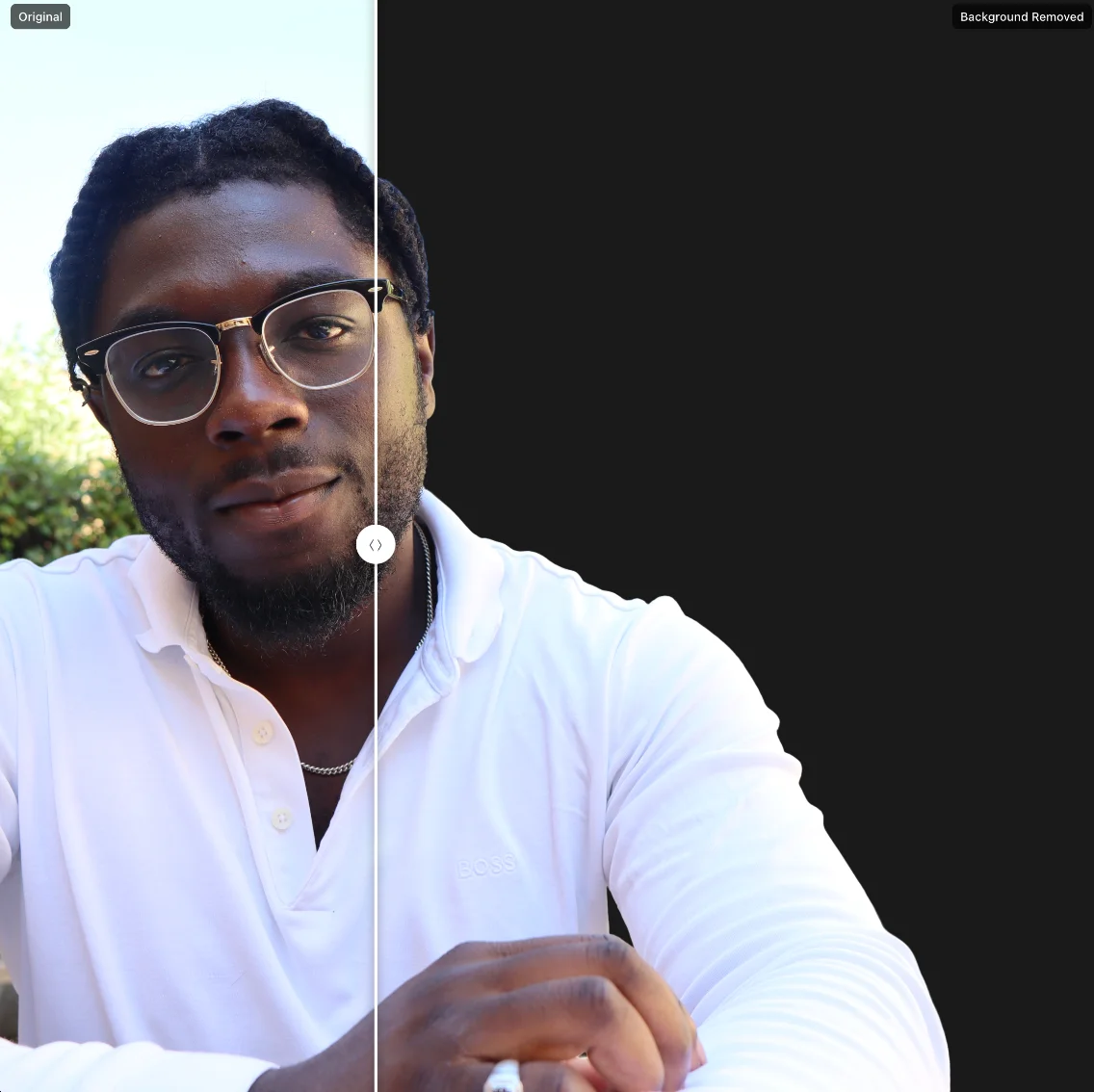
Cut the backdrop out of any image. Sharp on hair, fur, and glass. Transparent PNG or alpha mask.
AI Relight
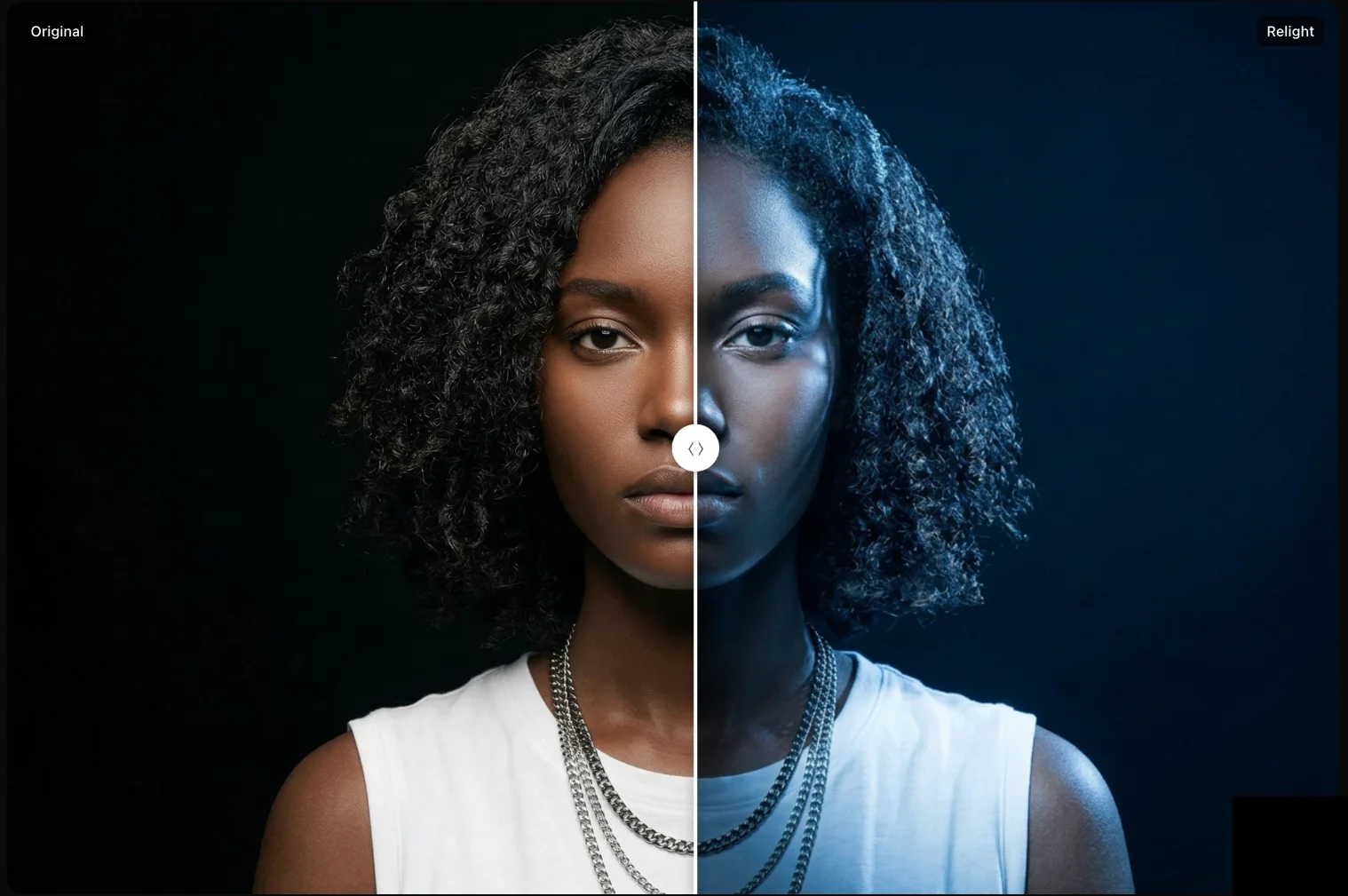
Change the lighting in any photo. Drag a light around the scene with a live WebGL preview.
Push your AI art to 4K
Drop a Midjourney, Flux, Stable Diffusion, or DALL-E render in. Watch it land at print resolution in under a minute.